
Blog · September 17, 2026
Troubleshooting Your Wi-Fi Printer Connection: When to DIY and When to Call The Nerd Network
Struggling to keep your Wi-Fi printer connected? Here’s a practical guide to troubleshoot common issues and know when it's best to call for help.
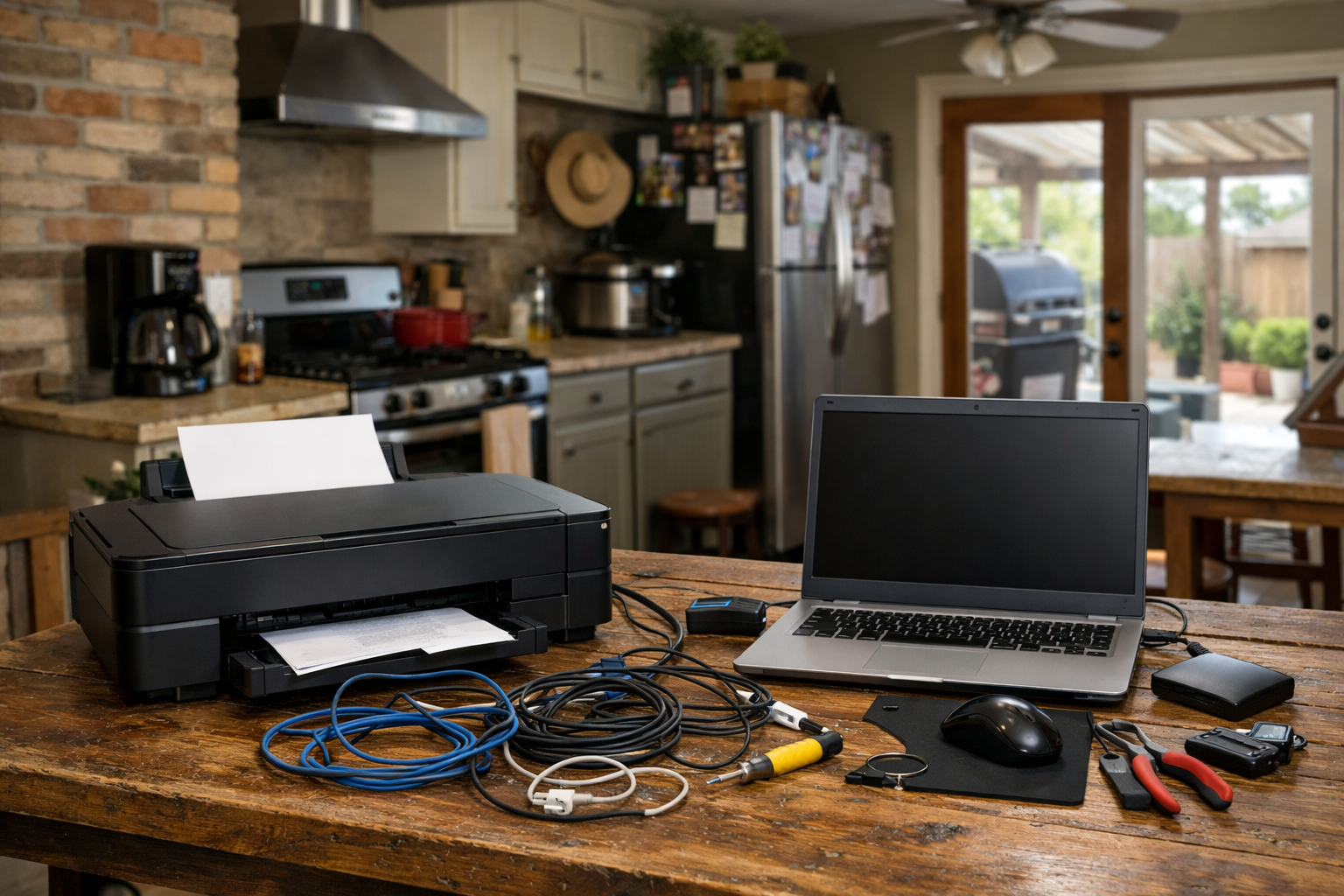
Having a printer that refuses to stay connected can be a source of frustration, especially when you’re trying to print important documents at home or in a small shop. Let’s take a look at some common issues with Wi-Fi printers, particularly when you’ve just set up a new computer, and figure out when it’s time to call The Nerd Network for assistance.
Check Your Printer Settings
First things first, let’s check the basics. Ensure that your printer is powered on and connected to the same Wi-Fi network as your computer. Sometimes, it’s as simple as forgetting to connect the printer to your home network after setting it up. Access the printer’s menu and look for the Wi-Fi settings. Reconnecting it can often resolve minor connectivity issues.
If your printer has a built-in display, you might find a network settings option there. If not, you might need to refer to the printer’s manual for instructions on how to connect it to your Wi-Fi again. This is a step you can typically handle on your own, but if you find yourself stuck, don’t hesitate to reach out.
New Computer, New Problems
If you’ve recently set up a new computer, this can complicate things. Sometimes, a new computer might not recognize an existing printer, especially with Wi-Fi printers. Make sure you’ve installed any necessary drivers for your printer on your new machine. Manufacturers usually provide this software on their websites, making it easy to download.
After installing the drivers, try to add the printer again through your computer’s settings. If it still won’t connect, consider whether the computer is on the same network as the printer. Sometimes, network settings can change during setup, and it’s essential to ensure everything is in sync.
Signal Strength and Interference
Wi-Fi printers are only as reliable as the network they rely on. If your Wi-Fi signal is weak in the area where your printer is located, it can lead to disconnected sessions. Try moving your printer closer to the router or consider repositioning your router for better coverage. If that’s not possible, a Wi-Fi extender could help boost the signal to your printer.
Additionally, check for any interference from other devices. Microwaves, cordless phones, and other electronics can disrupt Wi-Fi connections. If you suspect interference, try to keep the printer away from these devices.
Ink Levels and Maintenance
Believe it or not, sometimes a printer’s connectivity issues can stem from maintenance problems, particularly low ink levels. When ink is running low or if the printheads are clogged, the printer may act up. Check the ink levels, perform a maintenance check through your printer’s software, and run printhead cleaning if necessary. Regular maintenance can save you from unnecessary headaches down the line.
Book a Visit
If you’ve tried these troubleshooting steps and your printer is still refusing to cooperate, it might be time to consider professional help. At The Nerd Network, we’re here to assist you with any tech troubles, big or small, in Houston and surrounding communities. Don’t let a stubborn printer slow you down—call us to schedule a visit today.
Get Help at /contact or call (832) 413-2415.