
Blog · September 16, 2026
Storms and Power Flickers: What to Do When Your Tech Gets Unhappy
Houston storms can leave your computer, router, or modem in a state of confusion. Here’s how to handle power flickers and know when to call The Nerd Network for help.
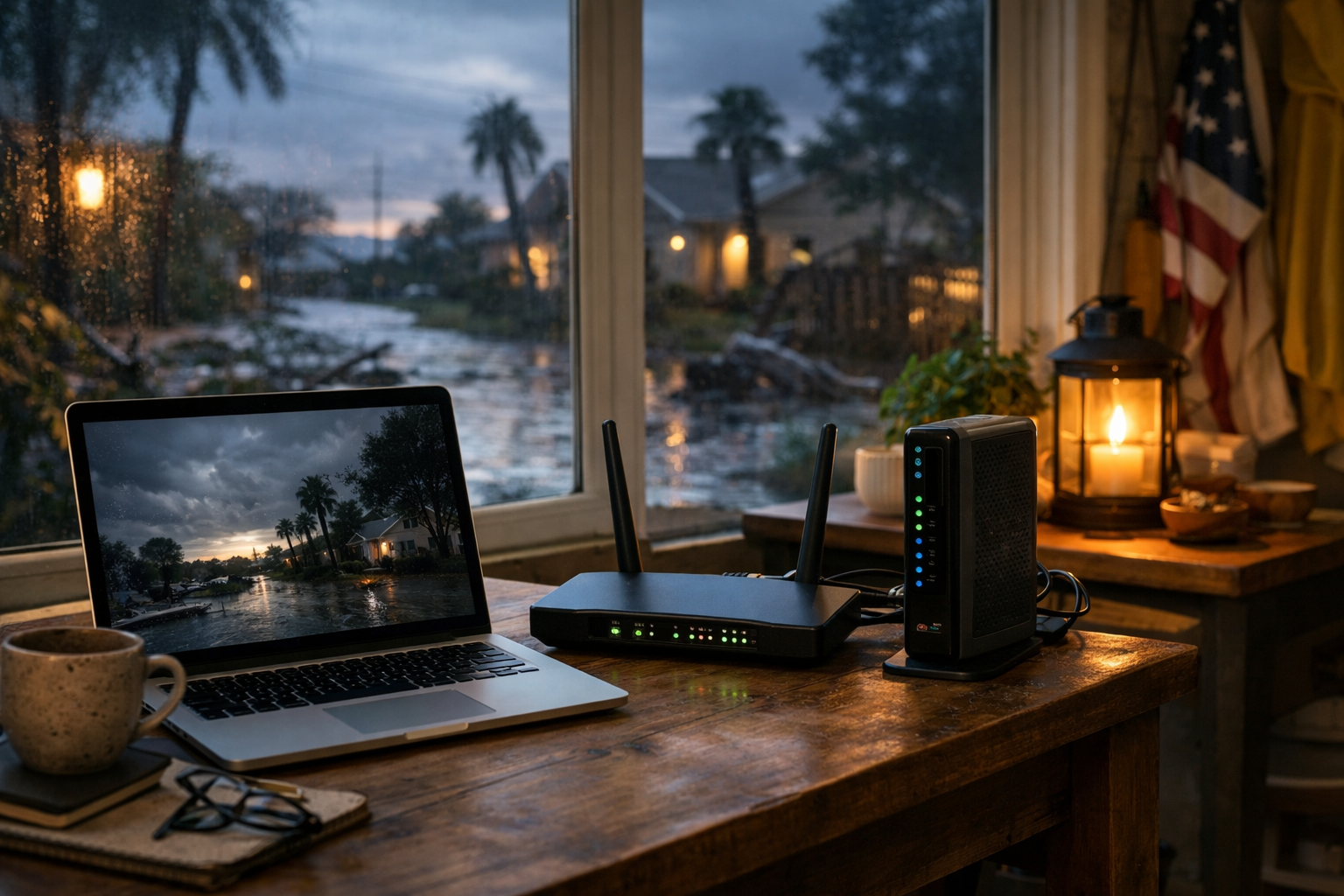
Storms in Houston can bring heavy rain and high winds, and sometimes those power flickers that follow can leave our tech feeling a bit rattled. If your computer or internet gear is unhappy after a storm, there are a few steps you can take right from your kitchen table before deciding to call in The Nerd Network.
Understanding Power Surges
Power surges typically occur when the electricity supply fluctuates, often triggered by storms or downed power lines. This can result in devices becoming unresponsive or, worse, damaged. To protect your electronics, it's wise to invest in surge protectors. If you haven't already, consider plugging your critical devices—like your computer and router—into one to help absorb any sudden spikes in electrical current.
What to Plug Back In First
After a storm, it might feel like a race to get your tech back up and running. Start by unplugging everything. Then, wait a few minutes before plugging things back in. When you do, follow this order:
- Router/Modem: Get your internet connection back up first. Without it, you can't troubleshoot anything online.
- Computer: Once the router is back online, plug in your computer. If it doesn’t start up, check the power connection and make sure the outlet is functioning.
- Peripheral Devices: After your computer is running, reconnect other devices like printers or external drives.
This methodical approach helps isolate any issues that may have arisen due to the power flicker.
Troubleshooting Common Issues
If your computer doesn’t boot up as expected or your internet connection remains spotty, here are a few steps to try:
- Check Connections: Ensure all cables are securely connected. Sometimes, a simple loose cable can cause issues.
- Restart Devices: A fresh start can work wonders. Power off your computer and router, wait for about 30 seconds, then power them back on.
- Look for Signs of Damage: If your device smells burnt or shows any physical signs of damage, it’s better to err on the side of caution.
When to Call for Help
If you’ve tried the above steps and your tech is still not cooperating, it may be time to book a visit from The Nerd Network. Here are some signs that indicate you should reach out:
- Your computer won’t turn on at all, despite being plugged in.
- The router is unresponsive, and you can’t connect to the internet.
- You notice unusual noises, smells, or other signs of hardware malfunction.
Sometimes, a flicker can cause deeper issues that need professional diagnosis. Don’t hesitate to reach out for help. It’s better to have a tech expert take a look than to risk further damage.
Book a Visit
Get Help at /contact or call (832) 413-2415.