
Blog · September 6, 2026
Enhancing Your Home Office: Adding a Second Monitor and Docking Station
If you're looking to boost your productivity with a second monitor in your Houston home office, there are a few key steps to ensure everything runs smoothly. Here’s how to set up your new display and avoid common pitfalls.
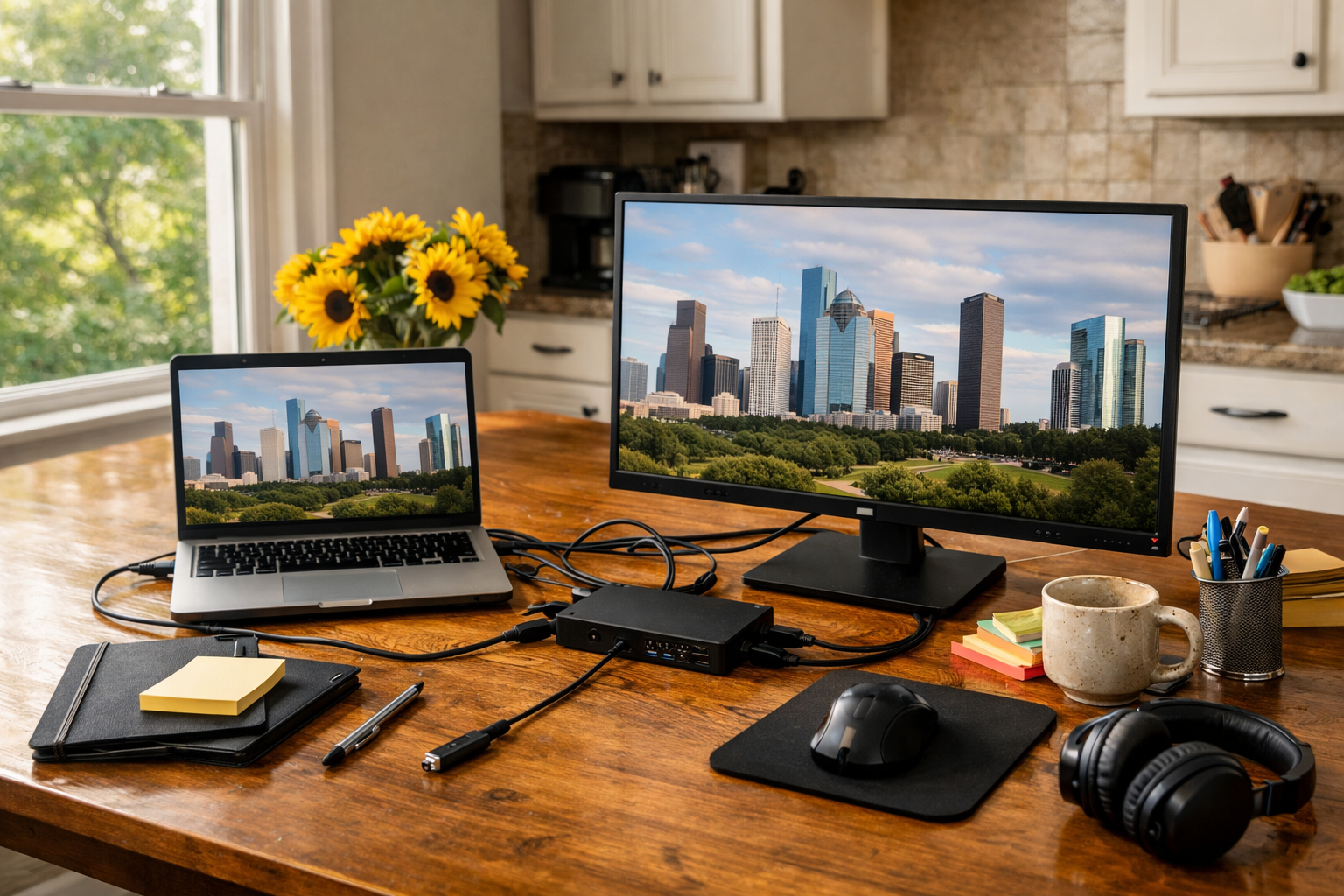
Setting up a second monitor in your home office can significantly enhance your productivity. Whether you’re working on multiple projects or simply want more screen real estate for your tasks, a second display can make a world of difference. Here’s what you need to know about connecting a new screen and docking station to your laptop.
Choosing the Right Cables and Adapters
When you decide to add a second monitor, the first step is ensuring you have the right cables and adapters. Most laptops come with HDMI ports, but depending on the age of your monitor, you might need a different connection type, such as DisplayPort or VGA.
If your monitor has a different input than your laptop's output, don’t worry! Adapters are readily available. Just make sure you pick one that suits both your laptop and monitor specifications. At The Nerd Network, we often help clients pick out these cables during our visits, ensuring they have everything they need to get started without delay.
Setting Up the Docking Station
If you’re using a docking station, it’s typically a straightforward way to connect multiple devices. Connect the docking station to your laptop via USB-C or Thunderbolt, depending on what your laptop supports. Once plugged in, connect your second monitor to the docking station. This setup allows you to connect additional peripherals – like keyboards and mice – while keeping your workspace tidy.
Once everything is connected, power on your monitor. If the screen remains black, it’s time to check a few settings.
Troubleshooting a Black Screen
A common issue many face when adding a second monitor is that it stays black even after being connected correctly. First, ensure the monitor is turned on and set to the right input source. Monitors can sometimes switch input modes automatically, so double-check that it’s set to the one your laptop is connected to.
If the monitor is on the correct input and still shows a black screen, try restarting your laptop. This can refresh the display settings. If that doesn't work, navigate to your display settings to see if the second monitor is detected. You can usually access these settings by right-clicking on your desktop and selecting 'Display settings.' Here, you should see both your laptop display and the additional monitor; make sure to select "Extend these displays" to use both screens effectively.
Final Considerations
Before you get too frustrated, remember that sometimes it’s simply a matter of compatibility. If your laptop and monitor don’t match up in terms of resolution or refresh rate, it can cause display issues. At The Nerd Network, we can help troubleshoot these compatibility issues and find the best solution for your home office setup.
Book a Visit
If you've followed these steps and your second monitor still isn't working, it might be time to get some help. Whether you need a hand with wiring, troubleshooting, or simply want to ensure everything is set up perfectly, The Nerd Network is here for you. Get Help at /contact or call (832) 413-2415.